Supplier Quote Analysis
| Audience: | All users can do this although it is usually the responsibility of Technical Controllers / Superintendents |
| Last Reviewed: | 27 January 2026 |
| Introduction: | This topic explains how to quickly identify the best supplier quote |
| See also: | Selecting Suppliers |

The Quote Analysis makes it very simple to view multiple supplier quotes simultaneously, helping identify the best supplier for the order.

To access this screen, select any enquiry / authorised enquiry in the Purchasing Screen, then click the [Analysis] tab.
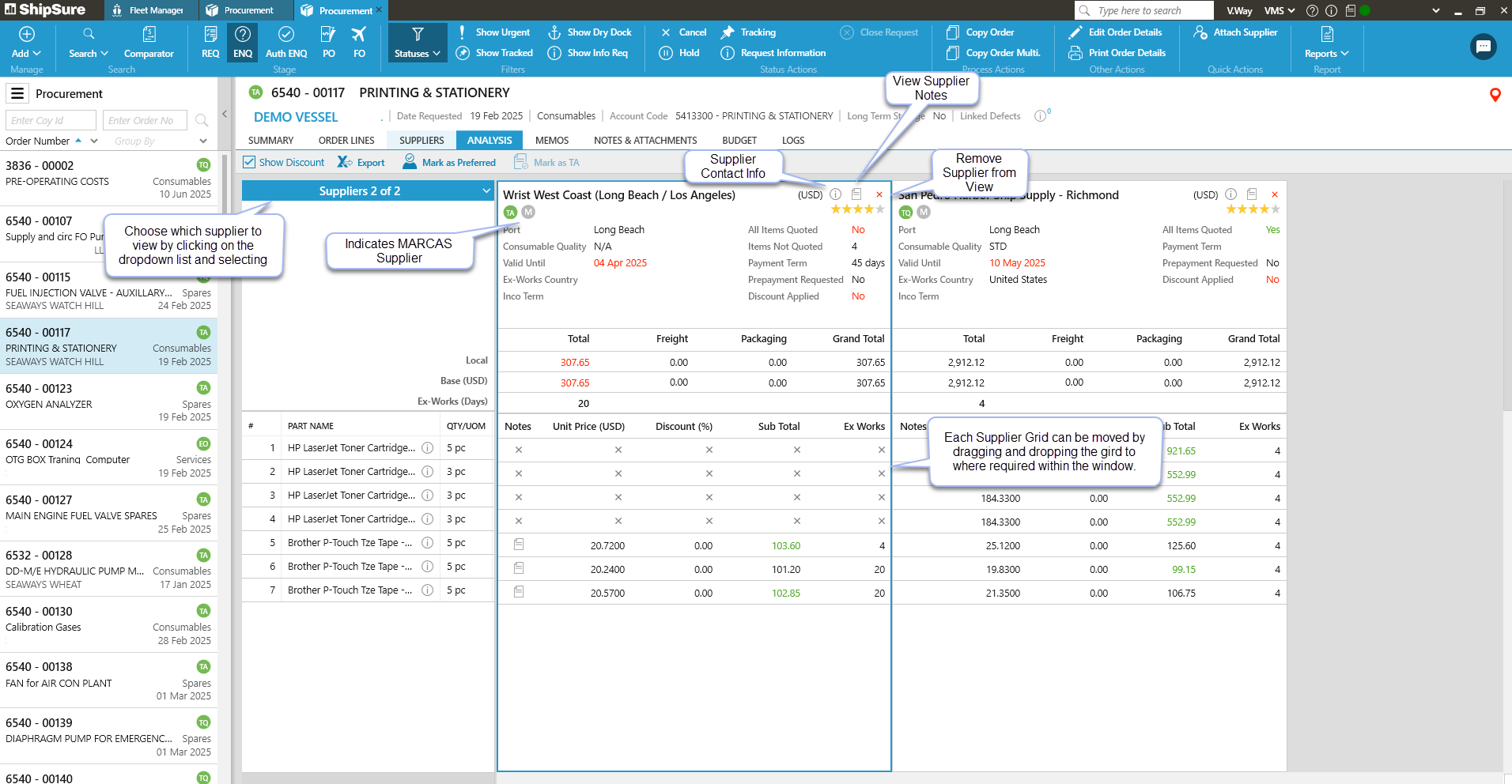
Within the Quote Analysis screen, the following information can be viewed:
- By default, only suppliers who have provided a quote will be displayed. However, to view all of the suppliers, select them from the Suppliers drop-down list.
- Only three supplier quotes can be viewed beside each other. However, if more than three supplier quotes have been selected or displayed, use the horizontal scroll bar to see them all. The supplier tiles can be moved by dragging-and-dropping them into different positions.
- For each supplier, its port, spare part type, how long the quote is valid and ex-works country can be viewed. Click the
 icon to view contact information.
 - Below the supplier details, the total value of the quote, both in the local and base currencies and the total number of days ex-works (if different parts have different ex-works and the highest number is used above can be viewed).
- Below the quote value, the price quoted for each line is shown. The lowest price of each line is highlighted in green.
- Any supplier discounts are automatically applied. The percentage discount can be viewed by clicking the Show Discount box.
If a suppler quote is to be amended, see Adding / Editing a Supplier Quote. Quotes are edited via the Suppliers tab.
However, a quote cannot be edited after it’s status has changed to Authorised Enquiry. The authorised enquiry would need to be rolled-back.
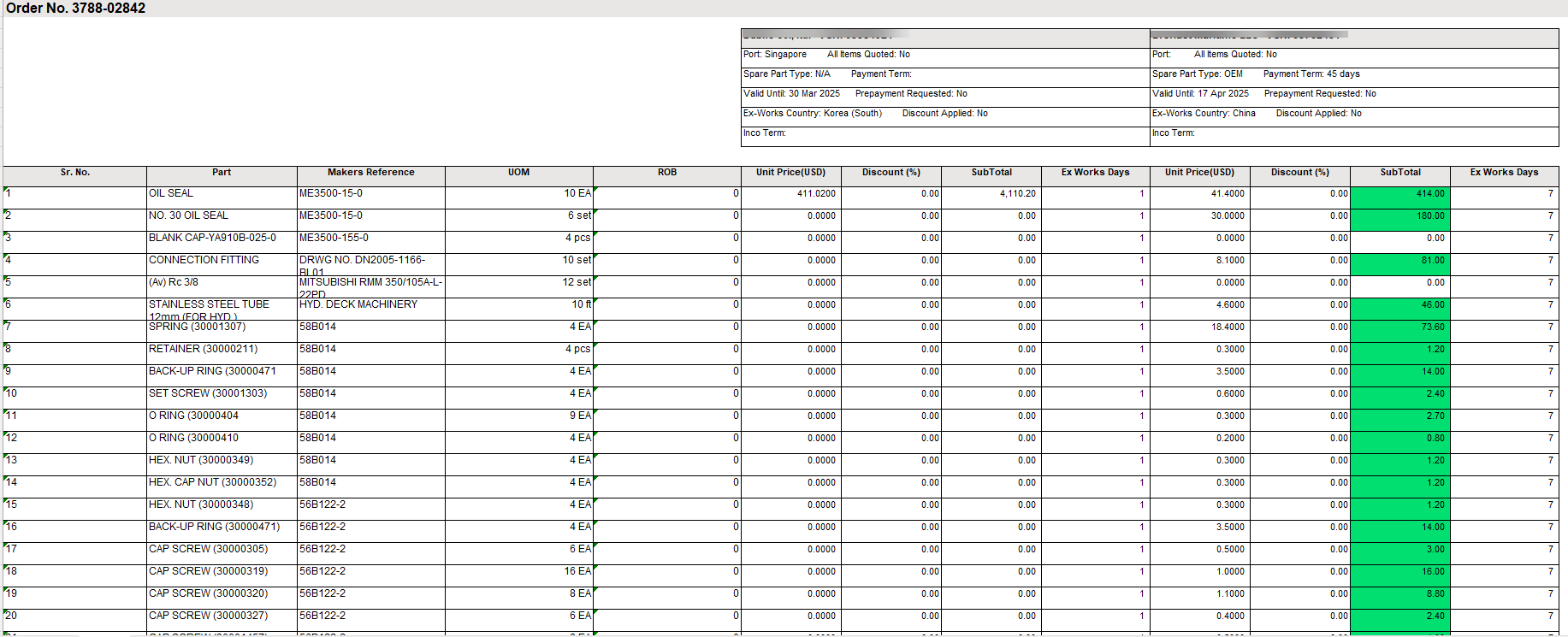
All of the suppliers on display can be Exported to excel for further analysis by clicking on the Export icon
The excel spreadsheet will appear at the bottom left hand corner of the user screen
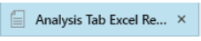
Click on the spreadsheet link to view the Analysis in Excel format
The analysis grids default to NOT displaying any discount applied by the supplier. To show the discount tick the Show Discount box and any discount applied by the supplier in their quote will appear listed in each supplier grid.
What next?
When the best quote has been identified, the quote can be authorised. Only users who have permission to Authorise can view and access the [Authorisation] tab.